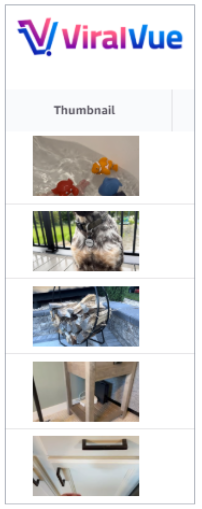
One of the elements in a product video’s success is the thumbnail, the small preview image that viewers see before clicking. Viral Vue displays thumbnails as a key reference point, helping influencers explore different visuals and get ideas for their own content.
How the Thumbnail Data Point Helps
Assess your thumbnails: Review your video previews to make sure they represent your content well.
Check competitors: Look at other influencers’ thumbnails to spot trends.
Download thumbnails: Save thumbnails to use on other platforms, for social media posts, or for inspiration when creating your own content.
 How to Access and Download Thumbnails in Viral Vue
Open Product Vue from any of these pages:
Your influencer storefront
Other influencers’ storefronts
Creator Studio
Creator Hub
Toggle on Video Vue. This will switch the view to show all uploaded videos with key details.
Look for the Thumbnail column in the list of videos.
To Download a Thumbnail:
Click the Download Thumbnail button, available in both:
Why It’s Important
Thumbnails affect whether viewers click and watch your videos.
Watching competitors can give ideas and keep your content fresh.
Downloaded thumbnails give you visuals that you can reuse or analyze to improve your content.
FREQUENTLY ASKED QUESTIONS
Can I download multiple thumbnails at once?
Currently, each thumbnail must be downloaded individually.
Need More Help? Use the support chat widget on our Help Center and our team will be happy to assist you.